

How to Factory Reset an Android Phone: A Simple Guide for a Fresh Start
A factory reset is the ultimate "fresh start" for your Android phone. It wipes all your personal data and returns the device to its original, out-of-the-box software settings. Think of it as hitting a giant reset button, giving your phone a clean slate.
This is a critical step if you're planning to sell or trade in your phone, but it's also a powerful troubleshooting tool for fixing stubborn software problems that just won't go away.
When Is a Factory Reset a Good Idea?
Giving your phone a total reset can feel a bit drastic, but sometimes it’s the smartest move. It’s not just for fixing glitches; a factory reset is an essential tool for protecting your privacy and boosting your phone’s performance.
Think of it like moving out of a house—you wouldn't leave your personal belongings behind for the next owner, right? The same logic applies when you sell your phone on a marketplace like Trade.com.au. You need to make sure your photos, messages, and account details are gone for good.
But selling your device isn't the only time this solution comes in handy.
Common Reasons to Reset Your Phone
- Selling or Trading In: This is the big one. A reset securely erases your personal data, protecting your privacy and ensuring the new owner gets a device that feels brand new from a software perspective.
- Fixing Persistent Glitches: If your phone is constantly crashing, freezing, or running at a snail's pace despite all your troubleshooting, a reset can often resolve deep-seated software conflicts. It’s the last resort when nothing else seems to work.
- Removing Malware or Viruses: While less common on Android, if you suspect your phone has been infected with malware, a factory reset is one of the most effective ways to completely wipe it out.
- Just Wanting a Clean Slate: Let's be honest, after years of use, our phones accumulate a lot of digital junk. A reset declutters everything, giving you that slick, like-new software experience all over again.
Before you start, remember this crucial tip: a factory reset is permanent. The absolute first thing you must do is create a complete backup of all your important data. Let's walk through how to do that now.
Step 1: Back Up Everything First
Hitting that factory reset button without a solid backup is a recipe for disaster. It’s like moving house and realising you left all your family photo albums behind. Before you wipe your device, taking a few minutes to save your data is the single most important thing you can do.
Thankfully, it's easier than it sounds. Most modern Android phones are tightly linked with your Google Account, which acts as a digital safety net, constantly saving your most important information.
This process is pretty consistent across different brands. Android holds a huge slice of the Australian smartphone market, with around 44% of mobile users on the platform as of early 2024. While the menu names might look slightly different on a Samsung compared to a Google Pixel, the core idea of backing up to your Google Account is the same.
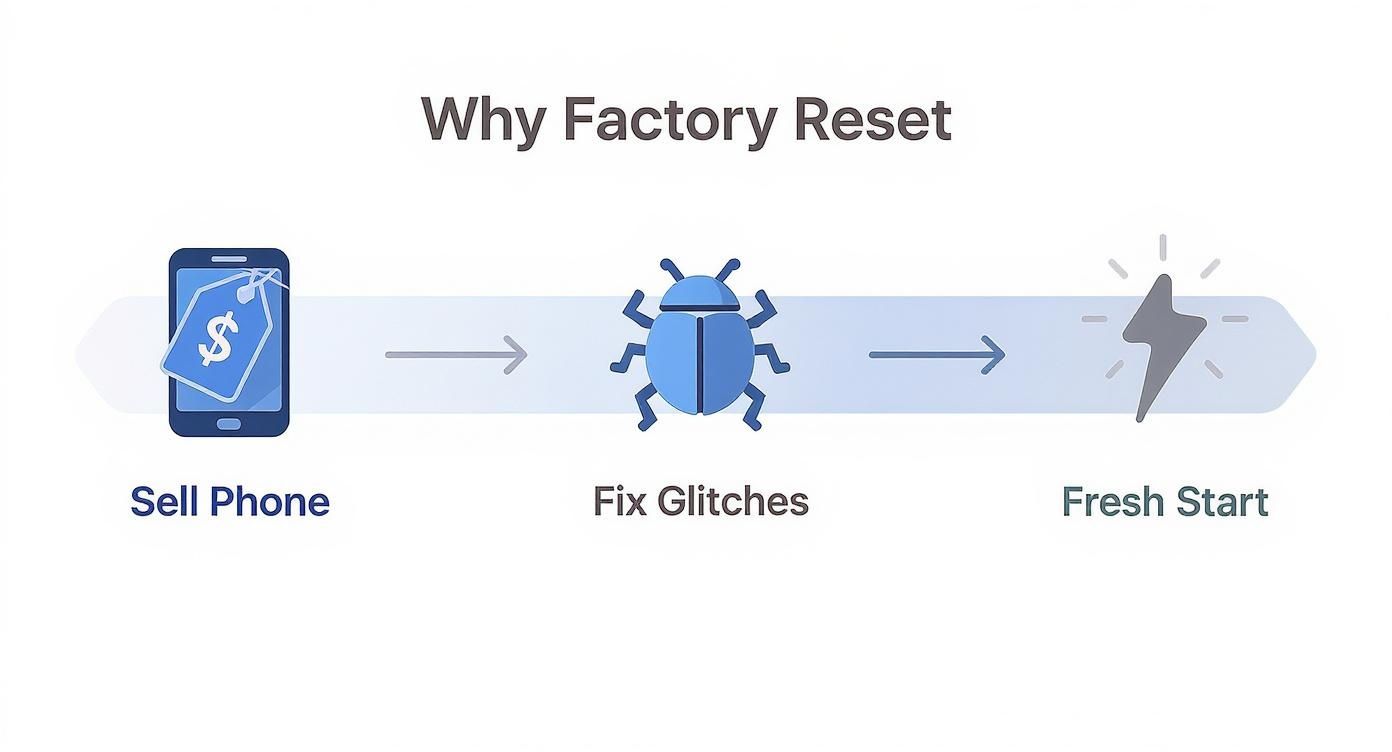
As you can see, the main reasons for a reset usually boil down to selling the phone, fixing persistent glitches, or just wanting that clean, out-of-the-box feeling again.
Cloud vs. Offline Backups
Google One is your best friend for cloud backups. It’s designed to automatically save the stuff that really matters.
- App Data: Keeps the settings and information for many of your installed apps.
- Call History & Contacts: Your entire address book and recent calls are kept safe.
- Photos & Videos: Taps into Google Photos to store your memories.
- SMS Messages: Preserves your text message history so you don't lose important conversations.
To check everything is working, head to Settings > Google > Backup. Make sure the toggles are on and tap “Back up now” to run a fresh save just to be safe.
If you prefer having a physical copy, connecting your phone to a computer with a USB cable is a solid option. Once it's plugged in, pull down the notification shade on your phone and select "File Transfer." From there, you can drag and drop important folders—like DCIM (your photos), Downloads, and Music—straight onto your computer’s hard drive.
Before you start, use this checklist to make sure you've covered all your bases.
Your Android Backup Checklist
| Data Type | Recommended Backup Method | Quick Tip |
|---|---|---|
| Contacts & Calendar | Google Account Sync | Go to Settings > Accounts and ensure sync is enabled for your Google account. |
| Photos & Videos | Google Photos / Manual PC Transfer | Let Google Photos sync, or drag the 'DCIM' folder to your computer for a physical copy. |
| Apps & Settings | Google One Backup | Run a manual backup right before you reset to capture the latest app data and settings. |
| SMS/MMS Messages | Google One Backup | This is included in the main Google backup, but check it's toggled on! |
| WhatsApp Chats | In-App Backup to Google Drive | Open WhatsApp > Settings > Chats > Chat Backup. This is separate from the main phone backup. |
| Music & Downloads | Manual PC Transfer | Connect via USB and copy the 'Music' and 'Download' folders to your computer. |
Running through this list gives you that extra bit of confidence that nothing critical has been left behind.
Don't Forget App-Specific Backups!
This is a classic mistake. Apps like WhatsApp have their own built-in cloud backup features that you need to trigger manually from within the app's settings. Forgetting this simple step is a surefire way to lose years of chat history.
A huge part of this process is making sure your photos and videos are safe. For some great advice on this, check out these tips on how to organize digital photos before you move them off your device.
Step 2: Perform the Factory Reset Through Settings
With your precious data safely backed up, you’re ready for the main event. The safest and most straightforward way to factory reset your phone is directly through the Settings app. It's a process designed to be user-friendly, even if the menu names vary a bit between Android brands.
Think of it like this: every car has a bonnet release, but the lever might be in a slightly different spot depending on the model. It's the same deal with Android phones. The path might differ slightly, but the destination—a completely wiped, fresh-out-of-the-box device—is always the same.
We'll walk you through the process for some of the most popular phones here in Australia.
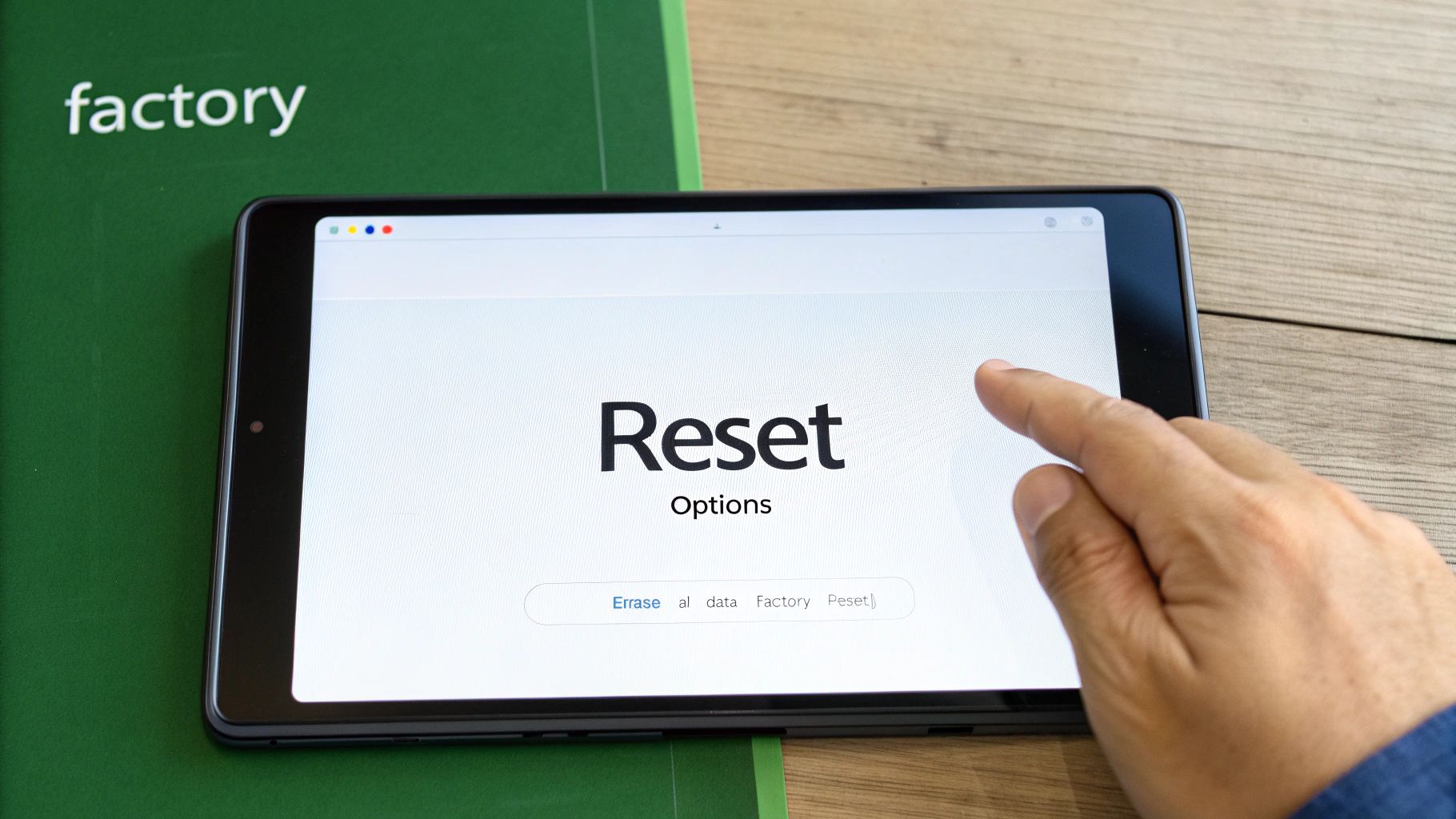
Finding the Reset Option on Your Device
Honestly, the quickest way to find the reset function is to open your Settings app and use the search bar at the top. Simply type in "reset", and it should point you in the right direction.
If you’d rather navigate there manually, here are the typical paths for major brands:
-
For Samsung Galaxy Phones: Go to
Settings>General Management>Reset>Factory data reset. -
For Google Pixel Phones: Find it under
Settings>System>Reset options>Erase all data (factory reset). - For OPPO and Other Brands: Look for similar paths, often under an "About Phone" or "Additional Settings" menu. The key phrases are always "Factory data reset" or "Erase all data".
Once you tap this option, your phone will show a summary screen listing everything that’s about to be permanently deleted—your Google account, apps, photos, messages, the lot. This is your final chance to turn back.
Security Checkpoint Ahead
Before you can give the final go-ahead, your phone will ask for your PIN, password, or pattern. This is a crucial security feature to ensure that only you, the authorised owner, can wipe the device.
After you enter your security details and hit the final "Erase" or "Reset" button, the process will begin. Your phone will shut down and reboot, usually showing a progress bar as it wipes your personal information.
This can take a few minutes, so it's a good idea to make sure your phone has at least 50% battery or is plugged into a charger.
Once it's finished, your phone will restart one last time and greet you with the original "Welcome" screen—exactly as it did the first time you took it out of the box.
Step 3: Add Extra Security Layers Before You Sell
So, you've hit the reset button. Job done, right? Not quite. Here’s something most people don't realise: a standard factory reset doesn't always guarantee your data is gone forever. With specialised software, lingering fragments of your personal information could potentially be recovered.
This is a huge deal if you're planning to sell or give away your phone. In Australia, while factory resetting is common, these potential security gaps often get overlooked. That’s why adding a couple of extra security layers before you reset is a non-negotiable step for protecting your privacy.
The Power of Encryption
The single best thing you can do to make your old data unreadable is to encrypt it before you reset. Think of encryption as scrambling all your information into a secret code. The only thing that can unlock it is the unique key—your PIN or password.
Most modern Android phones are encrypted by default, but it’s always smart to double-check.
- Just head to Settings > Security > Advanced settings > Encryption & credentials.
- If your phone isn’t already encrypted, you'll see an option to start the process right there.
By encrypting your device first, even if someone manages to recover bits of data after the reset, all they’ll find is a jumbled, useless mess of code. It’s the ultimate digital deadbolt.
By securely wiping your device, you are actively helping to prevent data breaches. This isn't just about personal photos; it includes banking details, emails, and contacts. For a deeper dive, you can learn more about how to prevent data breaches.
Unlink Your Google Account
Another critical step is to manually remove your Google account before you start the reset. This severs the connection between the device and your digital life, and just as importantly, it deactivates Google’s Factory Reset Protection (FRP).
FRP is a security feature designed to stop thieves from wiping and using a stolen phone. But it can cause major headaches for a new owner if you forget to disable it before passing the phone on.
It's simple to do. Go to Settings > Accounts, tap on your Google account, and select “Remove account”. It’s a good idea to do this for any other cloud or social media accounts you see listed, too.
Once you’ve done this, you’re not just clearing your data; you’re making sure your old device doesn’t cause any issues for you or its new owner. And if you're looking for a sustainable way to handle your old device, check out our guide on mobile phone recycling.
How to Reset a Phone You're Locked Out Of
What happens when your phone is stuck in a boot loop, won't turn on properly, or you've simply forgotten your password? It’s a stressful spot to be in, but there's a last-resort method that can get you back in action. This involves using Recovery Mode to perform a factory reset.
This method bypasses the Settings menu entirely by using your phone’s physical buttons. Think of it as finding a hidden service entrance when the front door is locked. While it's a powerful fix, it’s also a point of no return for your data—which is why that backup we discussed earlier is so critical.
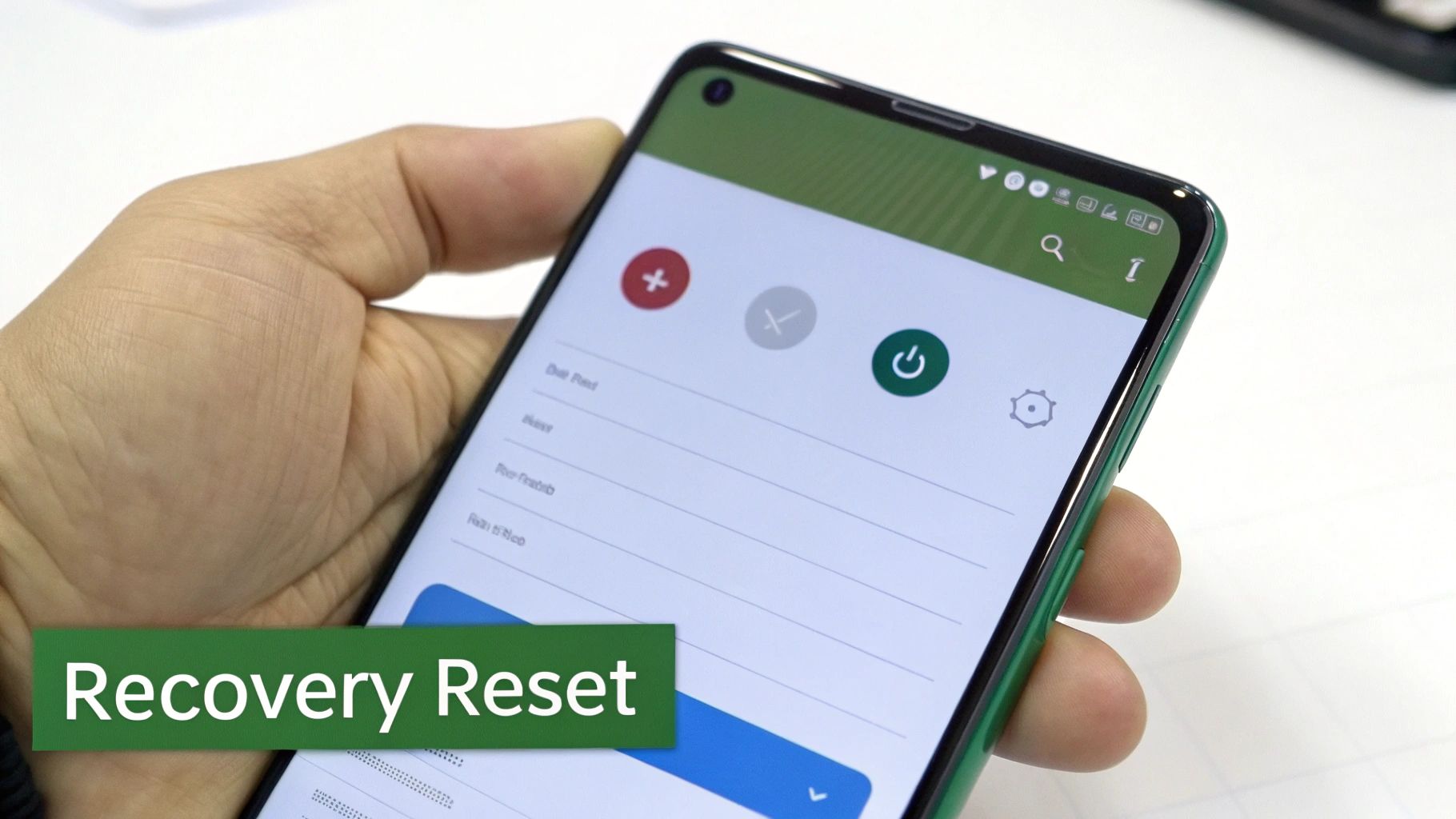
Entering Recovery Mode
First, you’ll need to completely power off your device. The button combination to enter Recovery Mode varies slightly between brands, but these are the most common ones in Australia:
- For most Samsung Phones: Press and hold the Power button and the Volume Up button at the same time.
- For Google Pixel and many others: Press and hold the Power button and the Volume Down button simultaneously.
Keep holding the buttons until you see the Android logo or a startup menu. Once you're in Recovery Mode, your touchscreen won't work. No stress—you'll use the Volume Up and Down buttons to navigate the menu and the Power button to select an option.
You'll see a list of technical-looking options. Carefully scroll down to the one that says ‘Wipe data/factory reset’. Press the Power button to select it. You’ll then need to confirm your choice on the next screen to start the process.
From there, the phone will begin the reset. Once it's done, just select ‘Reboot system now’.
It's worth mentioning that if you're only locked out because of a forgotten password, there might be other things to try first. To learn more, check out our guide on how to unlock an Android phone password without a factory reset.
After the Reset: Final Steps for a Fresh Start or Safe Sale
Right, the reset is done and your phone is at its original "Welcome" screen. What you do next depends on whether you're keeping the device or passing it on.
If you’re setting it up for yourself again, the setup wizard will ask you to sign into your Google Account. Just follow the on-screen steps, and it'll restore your apps, contacts, and settings from the cloud backup you made earlier.
However, if you're selling or trading in the phone, your job isn't quite finished. This next part is your final security check.
Final Security Sweep Before Selling
As we mentioned, a factory reset isn't always 100% foolproof. That's why experts recommend a layered approach to make sure your information is truly gone. We dive deeper into this in our complete guide on what to do before selling your Android phone.
The most overlooked steps are often the simplest. Before you pack the phone up, physically pop out your SIM card and any external SD cards. Forgetting these is an easy way to accidentally hand over your phone number and personal files.
Running through this final check protects your privacy and gets the phone perfectly prepared for its new owner.
Common Questions About Factory Resets
It’s normal to have a few questions before wiping your phone. Here are answers to the most common queries we hear.
Does a factory reset delete the operating system?
Nope! A factory reset will never delete or downgrade your phone's core Android OS. It only clears out your stuff—apps, photos, messages, and custom settings. The phone's software simply reverts to how it was after its last major update.
Will wiping my phone get rid of a virus?
In almost every case, yes. A factory reset is a powerful tool for getting rid of malware. Because it completely erases the phone’s storage, it takes the malicious software with it, giving your device a fresh, clean start.
While some incredibly sophisticated malware can burrow deeper, these instances are extremely rare for the average user.
Just remember, a factory reset is permanent. There is no 'undo' button. This is precisely why backing up your important files is the single most critical step. Once you confirm that final wipe, everything is gone for good.
Ready to sell your cleanly wiped phone or find a new one? Explore verified refurbished tech on Trade.com.au at https://www.trade.com.au today.