

How to Wipe an iPhone: Your Guide to Securely Selling in Australia
Thinking of selling or trading in your old iPhone? Hitting ‘Erase All Content and Settings’ is the final step, but there's some crucial prep work to do first. Getting this right is the difference between a smooth handover and a heap of frustration for you and the new owner.
Think of it like moving house – you wouldn’t just walk out and leave everything behind for the next person. You’d pack your valuables, clean up, and hand over the keys. The same idea applies here. Skipping these steps can mean losing precious memories or, worse, leaving the phone locked and unusable for its new owner.
Let's walk through the essential steps to make sure your iPhone is perfectly prepped for its next adventure.
Your Pre-Wipe Checklist for a Smooth Handover
Before you wipe your phone, a few simple checks will ensure a hassle-free process.
Step 1: Secure Your Data with a Backup
First thing's first: let's make sure your digital life is safe. A backup is a complete copy of your iPhone's contents—photos, messages, contacts, app data, the lot. Without one, everything will be permanently gone after the wipe.
You've got two solid options here:
- iCloud Backup: This is the simplest method. It works wirelessly over Wi-Fi, often happening automatically overnight while your phone is charging. It’s a true set-and-forget way to keep your data safe.
- Computer Backup: Using Finder on a Mac or iTunes/Apple Devices on a PC creates a local backup right on your computer. This can be much faster if you’ve got a tonne of data and gives you a physical copy that you control.
For a more detailed guide, check out our full walkthrough on how to back up your data using iCloud in Australia.
Step 2: Sign Out of Everything Apple
This is, without a doubt, the most important step. If you forget to do this, the phone stays linked to your Apple ID through Activation Lock, a powerful anti-theft feature that will render it useless for the next person.
Heads Up: A phone with Activation Lock enabled is like a car without keys—the new owner simply can’t use it. At Trade.com.au, this is one of the top reasons a device can't be accepted for trade-in.
Head into your iPhone’s Settings, tap your name at the top, and scroll down to Sign Out. You’ll need to enter your Apple ID password to confirm. This single action logs you out of iCloud and the App Store, and most importantly, it deactivates Find My, which officially removes the Activation Lock.
Step 3: Final Tidying Up
With your data safely backed up and your Apple ID disconnected, there are just a couple more loose ends to tie up.
- Unpair Your Apple Watch: If you use an Apple Watch, unpairing it from your iPhone automatically creates a fresh backup of the watch. This is a lifesaver, as it means you can easily restore all your faces and settings to a new iPhone later on.
- Remove Your SIM Card: Your SIM card is tied to your mobile plan, not the phone. Don’t forget to pop it out before you hand over the device. The new owner will have their own SIM, preventing any mix-ups with your account.
With your data backed up and accounts signed out, it’s time for the main event: wiping your iPhone clean.
Thankfully, Apple built the best tool for the job right into your phone's software. You don't need any special apps or technical know-how. Just a few taps in the Settings menu is all it takes to securely erase your device.
This built-in feature is called Erase All Content and Settings. When you use it, you’re doing more than just deleting your photos and messages. You’re actually shredding the encryption keys that protect your data. Think of it like destroying the only key to a vault—the contents are still technically inside, but they become completely and permanently inaccessible, ready to be overwritten.
Finding the Erase Option
Getting to the reset screen is straightforward, though the exact steps can differ slightly depending on which version of iOS you're running.
For most modern iPhones, here’s where you’ll find it:
- Open the Settings app.
- Tap on General.
- Scroll all the way down and select Transfer or Reset iPhone.
- Finally, tap Erase All Content and Settings.
Your iPhone will then show you a final summary of everything that’s about to be removed. This is your last chance to turn back before everything is gone for good.
Pro Tip: Before you hit go, make sure your iPhone has at least 50% battery or is plugged into a charger. The last thing you want is for the battery to die halfway through the wipe, as this can sometimes cause software problems.
What to Expect During the Wipe
Once you confirm, your phone will ask for your passcode and maybe your Apple ID password as a final security check. After you’ve entered them, the process will kick off.
The screen will go black, showing the classic Apple logo with a progress bar underneath. Be patient here. This can take anywhere from a few minutes to over an hour, depending on your iPhone model and how much stuff you had on it. It’s really important not to restart or mess with the phone while this is happening.
When it’s done, the iPhone will restart and you’ll see the multilingual "Hello" screen, just like when you first took it out of the box. This is your proof that the wipe was successful. All your personal information is gone, and the device is a completely clean slate, ready for its next owner.
For a more granular look, our full guide on how to do a factory reset on an iPhone breaks down every single step.
Comparing iPhone Wipe Methods
Deciding how to wipe your iPhone depends on its condition. The on-device Settings method is usually best, but it's not the only option. Here's a quick look at the most common methods.
| Wipe Method | Best For | What It Does | Requires |
|---|---|---|---|
| Settings App | Most users with a working iPhone. | Securely erases all data by destroying encryption keys directly on the device. | A functioning screen and access to the iPhone. |
| Find My (iCloud) | Remotely wiping a lost, stolen, or inaccessible iPhone. | Erases the device and removes it from your Apple ID as soon as it connects to the internet. | The device must be online; Find My must be enabled. |
| iTunes/Finder | iPhones with software issues, a broken screen, or forgotten passcode. | Restores the iPhone to factory settings by reinstalling the latest version of iOS. | A Mac or PC with iTunes (or Finder on newer macOS). |
| DFU Mode | A last resort for severe software corruption or failed updates. | A deep-level restore that bypasses the current OS to install fresh firmware. | A Mac/PC and precise button timing. |
While methods using a computer are great for troubleshooting, they aren't necessary for a standard pre-sale wipe. For most people, wiping directly from the Settings app is the quickest and safest path to a clean device.
Why a Proper Wipe Is Your Best Defence
Getting your old iPhone ready for sale is the single most important step you can take to protect your digital life. A proper, secure wipe is your best line of defence to ensure your personal information stays exactly that—personal.
In an age where our phones hold everything, the data left on a poorly wiped device can be a goldmine for the wrong person. Think about saved passwords, private iMessage history, location data, and even financial details. Skipping this step is like moving house but leaving your front door wide open.
The Activation Lock Headache
One of the biggest problems we see from an incomplete wipe is Activation Lock. This is a powerful anti-theft feature Apple built into the Find My service, tied directly to your Apple ID.
When Activation Lock is left on, the iPhone is basically a paperweight to anyone else. It can't be set up with a new Apple ID, which makes it completely useless for the next owner.
For a trade-in service like Trade.com.au, an iPhone with an active Activation Lock is a non-starter. It’s the most frequent, and entirely preventable, reason a device gets rejected.
This happens when you forget to sign out of your iCloud account before wiping the phone. It’s a simple oversight with huge consequences.
More Than Just Deletion—It’s Digital Shredding
So, what makes Apple's built-in wipe so secure? When you tap "Erase All Content and Settings," your iPhone isn't just deleting files. It’s destroying the encryption keys that protect your data.
Think of it this way: your data is locked away in thousands of tiny, uncrackable digital safes. A factory reset doesn’t bother emptying each safe. Instead, it vaporises the one master key that could open them. While the data technically still exists for a short time as a jumble of encrypted code, it’s rendered completely and permanently inaccessible.
This is more important than ever. According to the Office of the Australian Information Commissioner (OAIC), Australians reported over 700 data breaches in 2023 alone. When you use Apple’s official process, you’re using a method that makes your data effectively unrecoverable. You can discover more about how iOS handles your data right on Apple's support site.
Securing Your Digital Footprint
Properly wiping your iPhone is a direct application of the principles of endpoint security. Your phone is an 'endpoint'—a device that holds a massive chunk of your digital identity.
By following the right steps, you’re taking control of your own cybersecurity. It's a small investment of time that delivers huge returns in peace of mind, ensuring your data stays yours and your old device is truly ready for its next chapter, whether you're selling it, giving it to family, or trading it in right here in Australia.
Using a Computer for a Full Factory Restore
Wiping your iPhone from the Settings menu is easiest, but what if things aren’t so simple?
Maybe you've got a cracked screen, your phone is stuck on the Apple logo, or you’ve forgotten your passcode. In these situations, an on-device reset is impossible.
This is where your computer comes in. Performing a full factory restore using a Mac or PC is the most thorough method to securely erase your iPhone. It goes a step further by downloading and installing a completely fresh copy of iOS, which can fix deep-seated software problems while it cleans house.
When a Computer Restore Is Your Best Bet
This method is a powerful troubleshooting technique that can often bring a misbehaving iPhone back to life. You should turn to your computer when:
- The screen is unresponsive or broken: You can't get to the Settings menu if you can't tap the screen.
- Your iPhone is stuck in a boot loop: If your device just keeps restarting, a computer restore is usually the only way forward.
- You've forgotten your passcode: After too many wrong guesses, your iPhone will be disabled. A full restore is the only way back in.
- A software update has failed: Sometimes, an iOS update can go wrong, leaving your phone unusable.
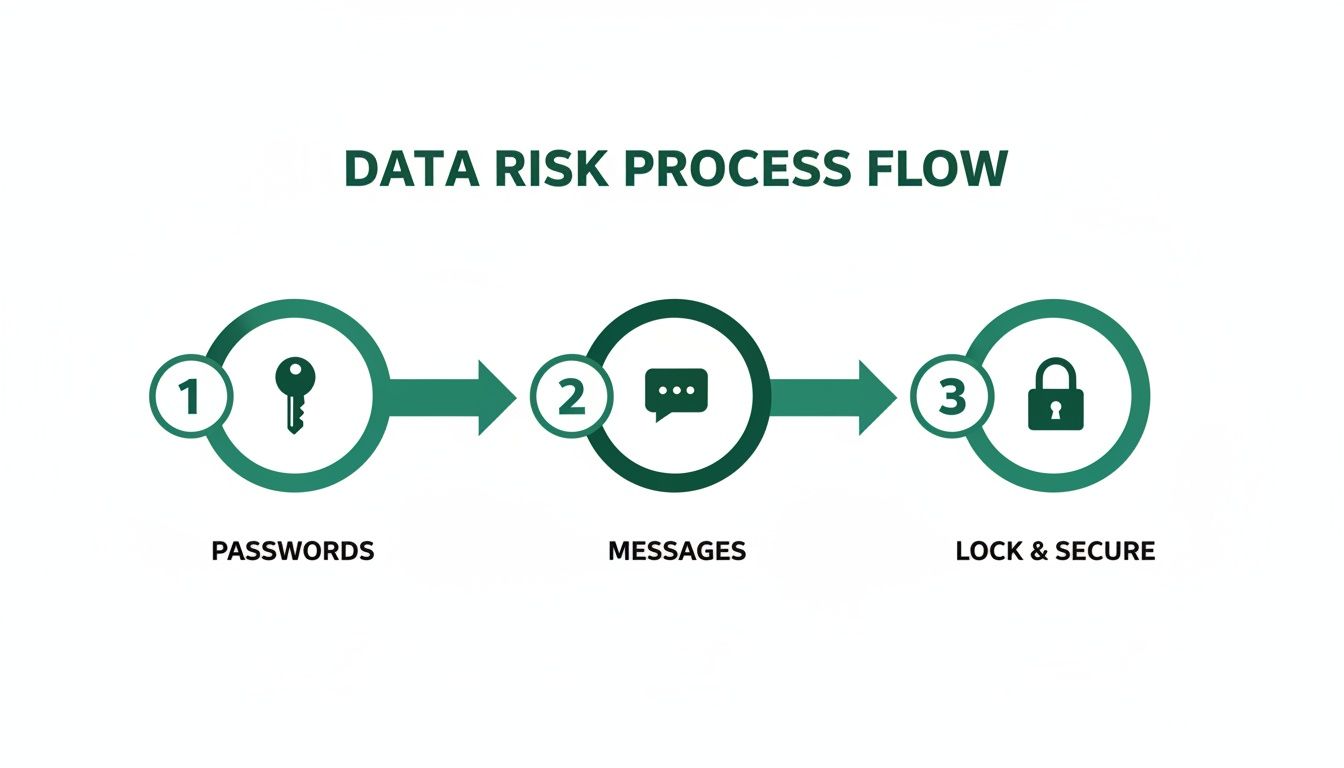
This process protects the digital footprint you leave behind, making a complete erasure absolutely critical before selling your device to anyone, including us at Trade.com.au.
Getting Started with Finder or iTunes
The tool you need depends on your computer's operating system.
If you're on a Mac running macOS Catalina (10.15) or later, you’ll use Finder.
For those with a Mac on macOS Mojave (10.14) or earlier, or anyone using a Windows PC, you'll need the classic iTunes application. If you have a newer Windows machine, Apple also offers a dedicated Apple Devices app that does the same job.
Friendly Tip: An outdated version of macOS or iTunes is the number one cause of connection errors. Before you plug your phone in, do a quick check for software updates to save yourself some frustration.
The Restore Process, Step by Step
Once your software is up to date, the process is straightforward.
First, grab a reliable USB cable and connect your iPhone to your Mac or PC.
Next, open the right application—Finder on a modern Mac, or iTunes/Apple Devices on an older Mac or PC.
Now for the most important part: entering Recovery Mode. This is what lets your computer talk to an iPhone that won't boot up properly. The button combo depends on your model:
- iPhone 8 or later: Quickly press and release Volume Up, then Volume Down. Then, press and hold the Side button until the recovery mode screen appears.
- iPhone 7 series: Press and hold the Side button and the Volume Down button at the same time until you see the recovery mode screen.
- iPhone 6s or earlier: Press and hold both the Home and the Top (or Side) buttons together until the recovery mode screen shows up.
Your computer will then detect an iPhone in recovery mode and show you a pop-up. You'll have two options: Update or Restore. You want to choose Restore.
Finally, just let the computer do its thing. It will download the latest version of iOS specifically for your iPhone model and install it. This can take a little while, so be patient and don't unplug the phone.
Once it's done, your iPhone will restart to the "Hello" screen, completely wiped and running fresh, clean software.
How to Remotely Erase an iPhone You Already Sold
It’s that sinking feeling. You’ve already shipped the iPhone you sold or handed it to the buyer, and then it hits you—you forgot to wipe your data.
Before you panic, take a breath. Apple has a built-in safety net for exactly this situation called 'Find My', which lets you fix the problem from anywhere with an internet connection.
Using Find My for a Remote Wipe
'Find My' is much more than a tool for tracking a lost phone; it’s a powerful security feature. You don’t need the physical iPhone, just a web browser and your Apple ID.
Here’s how to get it done:
- On any computer or tablet, open a web browser and head to iCloud.com.
- Sign in using the same Apple ID and password that’s on the iPhone you sold.
- Click the Find My icon (the green radar screen).
- A map will load. Click "All Devices" at the top and choose the specific iPhone you need to erase.
A small window will pop up showing the phone’s location along with a few options. The one you want is Erase iPhone.
The system will double-check that you’re sure, because this can’t be undone. Once you confirm, the command is sent. The next time that iPhone connects to the internet, it will automatically begin the factory reset, wiping all your content and settings completely.
The Final, Critical Step
After you’ve told the iPhone to erase itself, there’s one last thing you absolutely must do to officially cut the tie between you and that device.
Once the erase is in progress, you’ll see an option to Remove from Account. You must click this. This is what deactivates Activation Lock, freeing the iPhone from your Apple ID and allowing the new owner to set it up as their own.
If you skip this final click, the phone will remain locked to your account even after it's wiped, making it a useless brick for the buyer.
For a deeper dive, our dedicated guide explains more about how to properly remove an iCloud account from an iPhone. This remote wipe feature offers incredible peace of mind, ensuring your personal information stays safe even if you make a mistake.
Final Checks and Preparing for Your Trade-In
You’ve done the hard part and wiped your iPhone. But how do you know for sure that it worked? Thankfully, Apple makes this obvious.
When your iPhone has been correctly erased, it will restart and show the multilingual "Hello" or "Welcome" screen. This is the exact same screen you see on a brand-new iPhone. Seeing this is your green light—the ultimate confirmation that your personal data is gone for good.
Getting Your iPhone Physically Ready
Now that the digital side is sorted, it’s time to get the phone itself ready for its journey. A little bit of care goes a long way, especially when you’re sending it to a trade-in service like Trade.com.au.
Think of it like selling a car. You wouldn’t hand it over covered in mud with old receipts in the glovebox. A clean, well-prepared iPhone signals that it has been looked after and helps our team process it faster.
Your Final Physical Checklist
Before you pack it up, run through these quick but important physical checks.
- Give It a Good Clean: Grab a soft, slightly damp, lint-free cloth and give the screen and back a gentle wipe. Clean around the edges and camera lenses where dust hides.
- Remove Cases and Screen Protectors: Take off any cases or screen protectors. We need to assess the phone in its original state, and these can hide small scratches.
- Check the SIM Tray: This is the most commonly forgotten step! Double-check that you’ve popped your SIM card out.
- Gather Any Original Accessories: Still have the original box or charging cable? While not always essential, including them is a nice touch.
Once you’ve ticked these off, your iPhone is officially ready for its next chapter.
Got Questions? We've Got Answers
Here are a few of the most common questions we get about wiping iPhones.
Does a Factory Reset Really Delete Everything?
Yes, for all practical purposes, it does. When you use Apple’s Erase All Content and Settings function, you're destroying the encryption keys that keep all your data locked down.
Without those keys, your personal information is rendered completely inaccessible and scrambled. While the data isn't physically overwritten in that instant, it's effectively gone and will be covered by new data as soon as the phone is used again.
What if I Sold My iPhone but Forgot to Wipe It?
Don't panic! This is what the remote erase feature in Find My was built for. As long as the iPhone is still linked to your Apple ID and has an internet connection, you can log into iCloud.com from any web browser, erase it remotely, and then remove it from your account.
Will Wiping My iPhone Remove iOS Updates?
No, wiping your iPhone won't roll back the operating system. A factory reset erases your personal data—apps, photos, and settings—but it leaves the current version of iOS intact. The phone will restart with the same iOS version it had before, just in a fresh, out-of-the-box state.
The key thing to remember is that an iPhone wipe targets your personal data, not the core software. The operating system stays put, ensuring the device is secure and up-to-date for its next owner.
Ready for an upgrade? Once your old device is securely wiped, you can explore a massive range of certified refurbished tech at Trade.com.au. Find your next iPhone, Samsung, or laptop with total confidence, knowing it's backed by our 12-month warranty. Check out the latest deals today at https://www.trade.com.au.