

A Parent's Guide to Mastering iPhone Parental Controls
Giving your child an iPhone is a big step. It opens up a fantastic world of learning and connection, but it's completely normal to worry about screen time and what they might encounter online. This guide is your starting point for turning that device into a safer space, using Apple’s powerful, built-in parental controls—which work just as well on a quality refurbished iPhone as they do on a brand-new one.
Setting Up a Safer Digital Space for Your Child
Think of these settings less as restrictions and more as digital guardrails. They're there to help guide your child as they start to explore the online world. For most Australian parents, the concerns are the same: how to manage social media, block inappropriate websites, and stop those surprise in-app purchases from racking up a bill.
The good news? You don’t need to buy any extra software to build a balanced and protected digital life for your family.
This hands-on approach is becoming the norm. The residential segment actually dominates Australia's parental control software use, as more parents get to grips with their kids' online activities. Web filtering software is the most common tool in the toolkit, letting parents block access to content that isn't age-appropriate.
Why Built-in Controls Matter
Sticking with the iPhone's own tools has some real advantages for busy families. Here’s why it’s a smart move:
- No Extra Cost: Everything you need is already part of the iOS software. This is a huge plus, especially if you've saved money by choosing a refurbished iPhone from a marketplace like Trade.com.au.
- Seamless Integration: Because the controls are built right into the operating system, they’re far more stable and harder for tech-savvy kids to get around compared to third-party apps.
- Unified Management: With Family Sharing, you can manage the settings for all your kids' Apple devices from one simple dashboard on your own phone. It’s incredibly convenient.
This guide will walk you through setting up these features, one step at a time. Before we get started, you might also find our guide on choosing the best phone for kids helpful, as it covers what to look for at different ages. Let’s make their first smartphone experience a positive and secure one.
Your Guide to Using Screen Time Effectively
If you're looking to manage your child's iPhone usage, Screen Time is your command centre. It’s built right into every modern iPhone (yes, including certified refurbished models) and is the absolute key to fostering healthier digital habits for your kids. You can set it up directly on their device or, even better, manage everything remotely from your own phone using Family Sharing.
This isn't just about blocking stuff. Screen Time is designed to help you and your child find a healthy balance. It’s one thing to know you need to set boundaries, but it's another to have the right tools to do it. For parents wanting to go deeper, there are some fantastic resources out there to help you limit screen time effectively and build a routine that actually works for your family.
A great way to think about this is a simple three-step approach: Secure the device, guide its use, and then find that all-important balance.
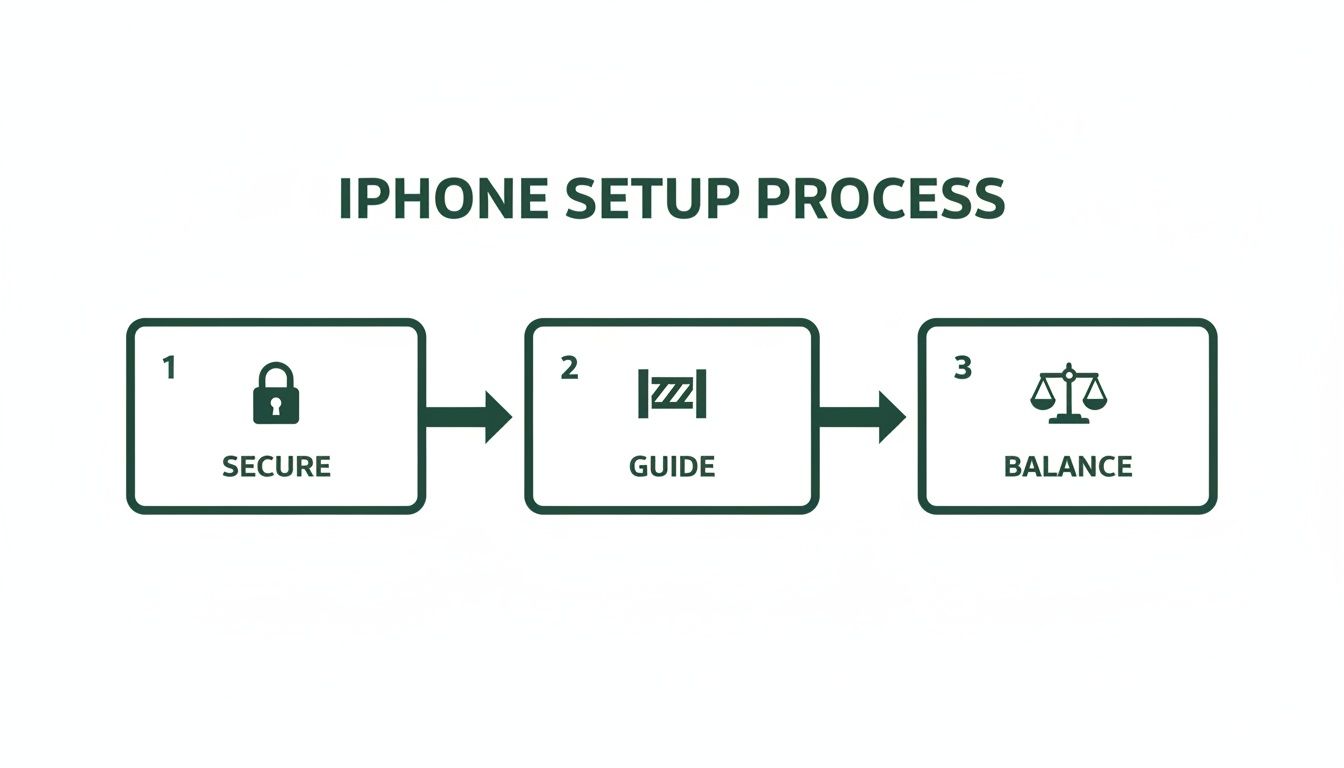
This process really drives home that good management is more than just restrictions. It's about combining security, guidance, and balance to help your kids develop responsible tech habits that will last a lifetime.
Creating a Digital Curfew with Downtime
One of the most powerful features you'll find is Downtime. Think of it as a digital curfew. You can schedule blocks of time when the phone is basically locked, except for a handful of apps you’ve specifically allowed. It's a lifesaver for homework hours or winding down before bed, making sure your child can actually switch off without digital temptations.
You can set a single schedule for every day or customise it, maybe allowing a bit more flexibility on weekends. When Downtime kicks in, they’ll get a notification letting them know their time is up if they try to open an app that isn't on the approved list.
Setting Practical App Limits
Is TikTok, YouTube, or Roblox becoming a black hole for your child's time? App Limits is exactly what you need. This feature lets you set daily time limits for entire categories of apps (like Social or Games) or even drill down to specific, individual apps.
For instance, you could set a one-hour daily limit for the Games category. Once that hour is up, all gaming apps are blocked for the rest of the day. It's a brilliant, low-conflict way to teach kids about moderation and time management.
Setting clear and consistent App Limits helps children understand that technology is just one part of a balanced day, alongside schoolwork, outdoor play, and family time.
Keeping Communication Lines Open
Even when the phone is in lockdown mode, you need to know your child can always reach you. That’s what Always Allowed is for. In this section, you can hand-pick the apps—like Phone, Messages, and FaceTime—that will work no matter what, even during Downtime.
This gives you total peace of mind, knowing they can always get in touch with you or other trusted family members. I always recommend adding key family contacts to this list right away.
For an extra layer of safety, especially with younger kids, you can use Communication Limits. This gives you incredibly granular control over who your child can talk to (and who can contact them) via Phone, FaceTime, and Messages. You can even set different rules for their allowed screen time versus during Downtime, ensuring that after their digital curfew, they can only communicate with family.
Filtering Content and Protecting Your Child's Privacy
Managing screen time is one thing, but the real peace of mind comes from knowing your child is safe from inappropriate content and their personal information is secure. This is where the Content & Privacy Restrictions section inside Screen Time becomes your best friend.
Think of it as the digital equivalent of child-proofing your home. It gives you incredibly detailed control over what your child can see, do, and share on their iPhone.
This is where you can fine-tune everything from App Store purchases to web browsing, and it’s a non-negotiable step when setting up any device for a younger user. It doesn't matter if it's a brand-new model or a quality refurbished iPhone from a trusted Aussie seller like Trade.com.au—these settings are essential. Let’s walk through the most important ones.
Preventing Unwanted Spending
One of the first things every parent should lock down is the ability to make purchases. We've all heard the horror stories of kids racking up hundreds of dollars on in-app purchases or downloading paid games without permission.
You can stop this dead in its tracks. Just head to iTunes & App Store Purchases within the Content & Privacy Restrictions menu. Here, you can set Installing Apps, Deleting Apps, and In-app Purchases to ‘Don’t Allow’. If that feels too strict, you can instead set it to require a password for every single purchase, which still ensures you have the final say.
Think of this as your financial firewall. Setting these restrictions from day one creates a clear boundary and prevents any surprise credit card statements at the end of the month.
Creating a Safer Web Browsing Experience
The internet is a massive, unfiltered place, and not all of it is suitable for kids. The good news is that the iPhone gives you excellent tools to filter web content right out of the box, with no need for third-party browsers.
Inside Content Restrictions, you’ll find the Web Content menu. You have a few powerful options here:
- Unrestricted Access: This is the default setting. It's not recommended for children or most young teens.
- Limit Adult Websites: A great starting point for older kids and teens. This uses Apple’s built-in filter to automatically block known adult sites. You can also add specific websites to an "always allow" or "never allow" list to customise it further.
- Allowed Websites Only: For younger children, this is the safest bet. It blocks access to the entire internet except for a specific list of websites you approve. You can add sites like ABC Kids, National Geographic Kids, or their school’s portal to create a completely walled-off, safe browsing garden.
Locking Down Privacy Settings
Protecting your child’s personal information is just as important as filtering content. The Privacy section is where you can stop apps and strangers from accessing sensitive data on their device.
A key setting to look at is Location Services. You can, and should, turn this off for most apps. Games and social media platforms rarely need to know your child’s whereabouts. It’s wise to leave it on for essential system apps like Find My so you can locate their device if it goes missing, but be strict with everything else.
This level of granular control is a major reason why Apple's built-in tools are a huge part of Australia's growing parental control software market. For budget-conscious Aussie families, especially those buying refurbished iPhones, having these powerful features included at no extra cost is a massive advantage. Find out more about the growth of digital safety tools in Australia.
Here’s a quick rundown of the most important settings you’ll find under Content & Privacy Restrictions.
Key iPhone Content Restriction Settings
| Setting | What It Does | Recommended For |
|---|---|---|
| iTunes & App Store Purchases | Prevents or requires a password for installing/deleting apps and making in-app purchases. | All children, to avoid accidental spending. |
| Allowed Apps | Lets you hide built-in Apple apps like Safari, Camera, or FaceTime completely. | Younger children who don't need access to a web browser or camera. |
| Content Restrictions | Filters music, movies, TV shows, and books by age rating. Also filters web content. | All children and teens. Adjust the age ratings as they mature. |
| Location Services | Controls which apps can access your child’s location data. | All children. Set to 'Don't Allow' for most apps except 'Find My'. |
| Contacts/Calendars | Prevents apps from accessing or changing your child's contacts or calendar entries. | All children, to protect personal data from third-party apps. |
| Passcode Changes | Locks the ability to change the device passcode, preventing your child from locking you out. | All children and teens to ensure you always have access. |
| Account Changes | Prevents changes to the Apple ID account, passwords, and other settings. | All children to stop them from changing iCloud or other critical settings. |
By spending a bit of time in this section, you can lock down other settings to prevent your child from making changes you don't want. This includes stopping them from altering their Contacts, Calendars, or even the Passcode and Account settings. By setting these to ‘Don’t Allow Changes’, you can be confident that the digital rules you’ve established will stay firmly in place.
Simplifying Management with Family Sharing
Setting up parental controls on one iPhone is pretty straightforward. But what happens when you’ve got a couple of kids, each with their own device? Suddenly, you're managing multiple sets of rules, and things can get complicated fast.
This is exactly where Apple’s Family Sharing becomes a lifesaver. It’s designed to bring all your family’s devices under one umbrella, letting you manage everything from a single, central hub: your own iPhone. Instead of grabbing each kid's phone to tweak their settings, you can do it all remotely.

Putting a Stop to Surprise Spending with Ask to Buy
If there’s one feature that parents universally love, it’s Ask to Buy. This simple but brilliant tool is your best defence against those unexpected credit card bills from in-app purchases or app store splurges.
Once it's switched on for your child’s account, you’ll get a notification on your device anytime they try to:
- Buy a new app from the App Store.
- Make an in-app purchase (like for extra lives or cool items in a game).
- Download paid music, movies, or books.
You get to review the request and either approve or decline it right there on the spot. It gives you total financial oversight and, just as importantly, opens up a natural conversation about smart spending and the value of money.
More Than Just Controls: Shared Benefits
Family Sharing is much more than just a set of restrictions; it’s about sharing value across the whole family. When you set up a family group, you can share eligible subscriptions and purchases, which can genuinely save you money.
Think of Family Sharing as your digital household hub. It brings everyone's devices under one roof, streamlining everything from app purchases and data storage to location tracking.
This kind of integrated, family-first approach is a big reason why digital supervision tools are becoming so common. In fact, the global parental control software market is expected to reach USD 4.12 billion by 2034, with households making up a massive 73.80% of that market. It shows just how much families value built-in, easy-to-use controls like those Apple provides. You can read the full research about parental control market trends to see how family needs are shaping modern tech.
On top of shared purchases, your family can also share:
- Apple Subscriptions: One Apple Music family plan or a single Apple TV+ subscription can cover everyone.
- iCloud+ Storage: Instead of everyone needing their own plan, you can pool storage for family photos, videos, and vital device backups. Our guide on how to backup your data on iCloud in Australia can help you get the most out of it.
- Location Sharing: Using the Find My app, you can see where everyone’s devices are on a map. It’s an invaluable tool for peace of mind.
And while you’re getting the family organised, learning how to share calendars in iCloud is another great way to keep everyone’s schedules in sync, working perfectly alongside your parental control setup.
Troubleshooting Common Parental Control Issues
Even with the most carefully configured settings, you’ll probably run into a hiccup or two with your iPhone's parental controls. A forgotten passcode or a setting that just won't sync can be a real pain, but don’t worry—most of these common issues have a simple fix. These solutions work the same whether you're using a brand-new iPhone or a trusty refurbished model, since the controls are part of the core iOS software.
One of the most common moments of panic for parents is forgetting the Screen Time passcode. If you or your child draws a blank, you don't need to stress. You can easily reset it using your Apple ID and password, so you’re never truly locked out of managing their device.
And if you ever need a completely fresh start—maybe you’re passing the phone down to another child—knowing how to reset it is essential. For a full wipe of the device and its settings, our guide on how to do a factory reset on an iPhone will walk you through the process safely.
Solving Syncing and Update Problems
A classic headache is when Screen Time settings don't seem to sync properly across devices, like an iPhone and an iPad. If you're managing everything through Family Sharing and notice that app limits aren't updating, the fix is often surprisingly simple.
Here are the first things to check:
- Software Updates: Make sure all devices—yours and your child’s—are running the latest version of iOS. Apple is constantly patching bugs, and an update is often all it takes to solve syncing glitches.
- Apple ID Login: Double-check that every device is signed into the correct Apple ID and is part of your Family Sharing group. Sometimes, just signing out and back in again is enough to force a fresh sync.
- Internet Connection: For settings to update in real-time, the devices need a stable Wi-Fi or mobile data connection. If a device is offline, any changes you make won't apply until it reconnects.
Handling Requests and Adjusting Rules
As your kids get older, your approach to parental controls needs to change, too. What works for an eight-year-old is definitely not going to work for a teenager. The goal should be to shift from pure restriction towards guidance, and the iPhone’s tools are actually built to support this.
When your child requests more time for an app, it’s a brilliant opportunity for a conversation. Instead of an automatic "no," use it as a chance to find out why they want more time. Are they in the middle of a school project, or just falling down a YouTube rabbit hole? This dialogue is what builds trust and teaches them how to manage their own time.
Pro Tip: Use the weekly Screen Time activity reports as a conversation starter, not an accusation. Sit down with your child and look at it together. Talk about where their time is going and work as a team to set goals for the next week. It turns a chore into a collaborative exercise in digital wellness.
Remember, parental controls aren't a "set and forget" feature. It’s a good idea to revisit the settings every few months to adjust them based on your child's maturity, responsibility, and what’s going on in their life. This flexibility shows them you trust them to handle more freedom as they earn it.
Got Questions About iPhone Controls? We’ve Got Answers
When you're setting up an iPhone for your child, a few questions always seem to pop up. Here are the answers to the things Australian parents ask us most often, explained in a simple, no-nonsense way.
Can My Child Get Around iPhone Parental Controls?
Apple's built-in controls are pretty robust, but a determined kid will always look for loopholes. The single most important thing you can do is set a strong Screen Time passcode that your child can't guess. Think random numbers, not their birthday or '1234'.
Also, guard your Apple ID password like a state secret. If they get access to that, they can reset the Screen Time passcode themselves. Finally, keep the iPhone's software updated. Apple is constantly releasing patches to close security gaps that kids might find out about online.
Do These Controls Work on a Refurbished iPhone?
Yes, absolutely. Parental controls like Screen Time are baked into the iPhone's operating system (iOS), not the physical device itself.
As long as the refurbished iPhone you get from a trusted Australian seller is running a modern version of iOS, you'll have the exact same suite of safety and management features as a brand-new phone. This is one of the biggest wins of buying a quality refurbished model—you get top-tier software and security without the eye-watering price tag.
Can I Read My Child's Text Messages on Their iPhone?
Directly, no. Apple built its system with user privacy at its core, so you can't simply spy on their iMessages from your own device. However, you can use Communication Limits within Screen Time to control exactly who they can message and call, and who can contact them.
For very young kids, some parents find it useful to sync their child's iMessages to a shared family iPad for a bit more oversight. But as they get older, the conversation needs to shift towards building trust and teaching them how to communicate safely and respectfully online.
What Is the Right Age to Give a Child an iPhone?
There's no magic number here. It really comes down to your child's maturity and your family's needs. Some kids are ready for the responsibility at 10, others might need to wait until they're 13 or 14.
The most important thing isn't the age they get the phone, but that you have these parental controls set up from day one. It allows you to introduce them to technology in a safe, controlled way, and then you can gradually loosen the reins as they prove they can handle the freedom responsibly.
Ready to find a safe, reliable, and affordable iPhone for your child? At Trade.com.au, every device is verified and comes with a warranty, giving you complete peace of mind. Explore our range of certified refurbished iPhones at https://www.trade.com.au.