

A Simple Guide on How to Find Your IMEI Number on an iPhone
Need to find your iPhone's IMEI number in a hurry? Here’s the quickest trick in the book: pop open your Phone app and dial *#06#. Just like that, the 15-digit code will appear on your screen, ready to be copied. It’s that simple.
Why Your iPhone IMEI Is More Than Just a Number
Before we jump into the different ways to find it, it’s worth understanding why this string of digits is so important. Think of the IMEI (International Mobile Equipment Identity) as your iPhone’s unique fingerprint—no two devices on earth share the same one.
This 15-digit code is your best friend in a few key situations you'll almost certainly come across.
Protecting Your Investment
Your IMEI is your first line of defence, especially when you're buying or selling a pre-owned phone. If you’re looking to sell your old device on a verified marketplace like Trade.com.au, you'll need it to prove its history and authenticity to potential buyers.
It’s also absolutely essential for:
- Insurance Claims: Your provider will ask for the IMEI straight away to process any claim for a lost, stolen, or damaged phone. No IMEI, no claim.
- Reporting a Stolen Device: If your iPhone ever goes missing, giving the IMEI to your telco and the local police lets them blacklist it. This makes it completely useless on any Australian mobile network.
- Buying Second-Hand: Always, always ask for the IMEI before handing over your money. A quick online check can tell you if the device has been reported stolen or blacklisted, saving you from a world of headache.
An IMEI check is the single most important step you can take for peace of mind when buying a used iPhone. It confirms the device is legitimate and ready for a new owner.
A Key Tool in the Resale Market
The second-hand smartphone market in Australia is booming, with iPhones being incredibly popular. With so many devices changing hands, IMEI verification has become a non-negotiable step for protecting buyers and sellers alike.
Here in Australia, the Australian Mobile Telecommunications Association (AMTA) maintains a national database of blacklisted devices using these unique numbers, helping to clamp down on phone theft.
Of course, getting your phone ready for sale involves more than just finding its IMEI. You’ll also need to make sure your personal data is completely wiped. For a step-by-step walkthrough, check out our guide on how to remove iCloud from an iPhone before you sell it.
Instantly Reveal Your IMEI With a Simple Dial Code
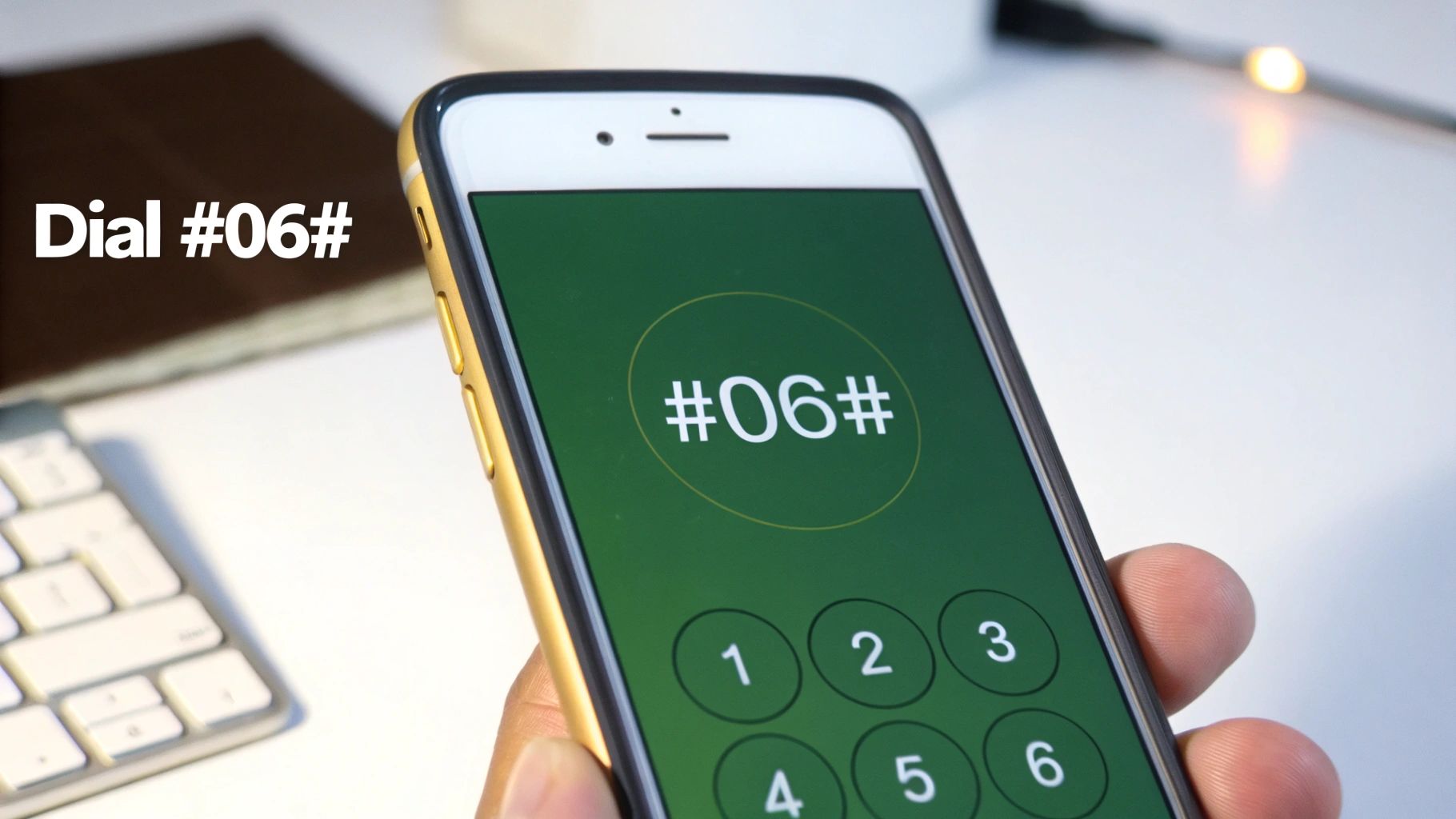
If you need your IMEI number in a hurry, there’s a universal trick that’s hands-down the fastest method. This is our favourite because it works instantly on almost every mobile phone ever made, not just iPhones.
All you need to do is open your Phone app and bring up the keypad, just like you’re about to dial a number.
The Universal Code
Now, punch in this simple sequence: *#06#
The moment you type that last ‘#’, your iPhone will automatically display a “Device Info” screen. You don’t even have to press the green call button.
This screen immediately shows your phone’s unique identifiers. You’ll see the primary IMEI, and if your model supports it, a second IMEI for an eSIM, along with other codes like an MEID or EID.
Pro Tip: Don't bother trying to write the long number down. Just tap and hold the IMEI on your screen, and a ‘Copy’ bubble will pop up. This lets you paste it perfectly into a note, message, or a website form.
This little copy-and-paste shortcut is a lifesaver. It completely eliminates the risk of typos, ensuring the number you provide is 100% accurate—critical when you're checking a phone’s history or listing it for sale online.
Navigating Your iPhone Settings to Find the IMEI
If you'd rather not use the dialler keypad, finding your IMEI in the Settings app is just as straightforward. The big advantage here is that you get a whole treasure trove of other useful device information, all neatly organised in one place.
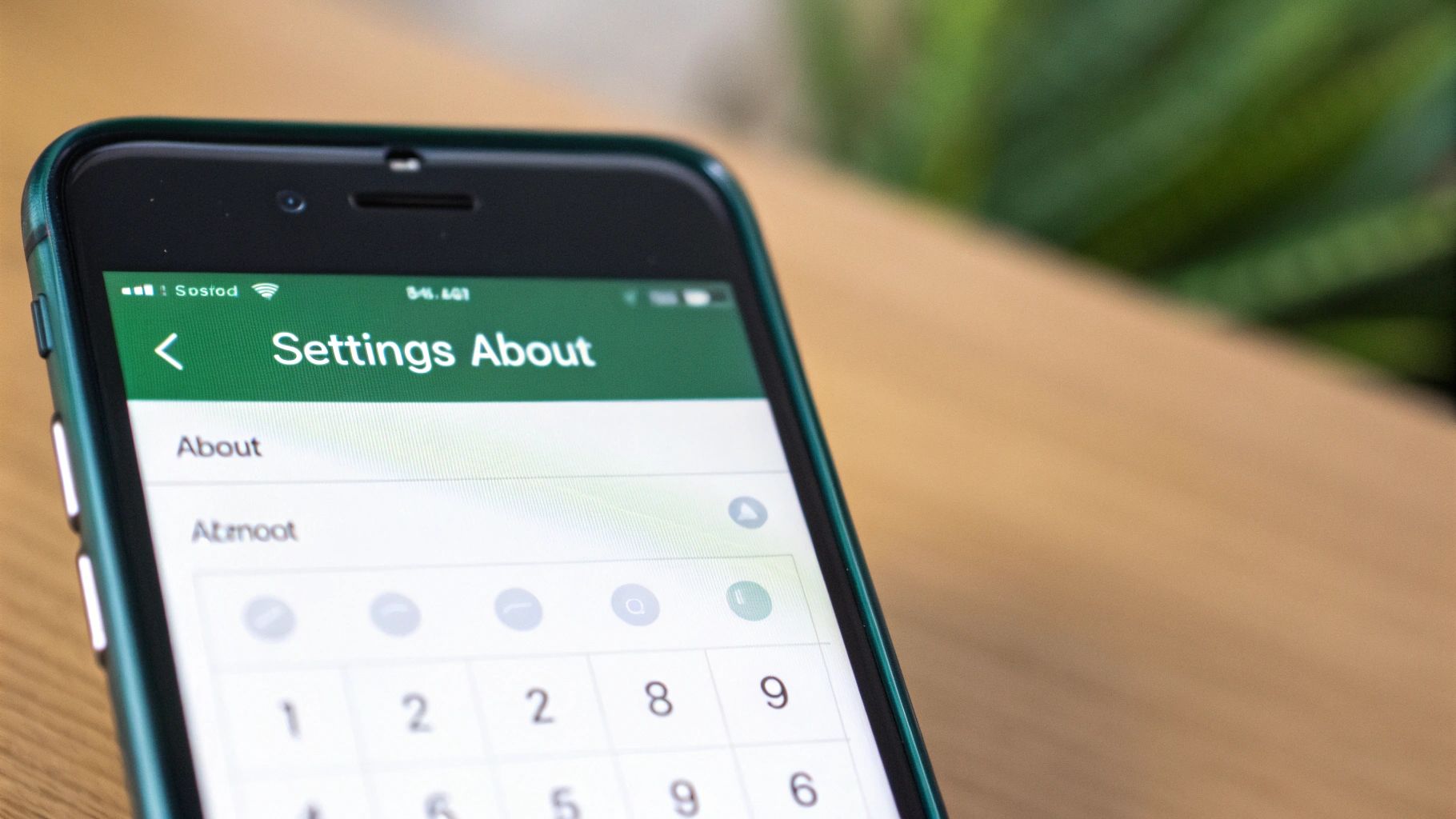
To get started, just pop open the Settings app on your iPhone. From there, the path is simple:
- Tap on General
- Then head into About
Once you’re on the ‘About’ screen, just scroll down a little. You'll spot your IMEI listed, usually under a heading like 'Physical SIM' or 'Available SIM'. If your iPhone has an eSIM, you’ll likely see a second IMEI number right there with it.
Just like the dial code method, you can tap and hold the number to bring up a 'Copy' option. It's a handy little feature that prevents typos when you need to paste it somewhere else.
Understanding the Other Codes
While you're poking around the ‘About’ section, you’ll probably notice a bunch of other acronyms hanging out with your IMEI. It can look a bit like alphabet soup at first, but each of these identifiers has its own job.
Your iPhone's 'About' screen is the central hub for all its unique identifiers. Think of it as your device’s digital birth certificate, containing everything from its serial number to its network details.
Here’s a quick look at the common codes you'll find and what they actually mean. This can be a real lifesaver if a support agent or telco asks for more than just the IMEI when you're trying to set up a new plan or troubleshoot a problem.
Understanding Your iPhone's Device Identifiers
This table breaks down those other codes you see in the 'About' section, making it easy to know which number to grab when someone asks.
| Identifier | What It Is | When You Might Need It |
|---|---|---|
| Serial Number | A unique code Apple assigns to identify the specific hardware of your device. | Warranty claims, Apple support, or checking trade-in value. |
| Model Number | Identifies your iPhone model and the country/region it was sold in. | Checking for specific features or regional compatibility. |
| ICCID | The unique serial number for your physical SIM card. | When activating a new SIM or transferring your number. |
| MEID | Another unique hardware identifier, mostly used by older CDMA networks. | Network troubleshooting or device registration on certain carriers. |
| Wi-Fi Address | The unique MAC address for your iPhone’s Wi-Fi hardware. | Connecting to specific Wi-Fi networks that use MAC filtering. |
Knowing how to find your IMEI number on your iPhone through the settings is a great skill, and now you know what all those other confusing codes mean, too.
What If Your iPhone Won't Turn On? Finding the IMEI
It’s a common scenario: your iPhone screen is shattered, or the device is completely dead, and you need the IMEI number for an insurance claim or repair quote. You might think you're out of luck if you can't get into the Settings app, but don't panic. You still have a few clever ways to track it down without ever needing to power the phone on.
Thankfully, Apple has always marked its devices with the IMEI somewhere on the physical hardware, giving you a reliable backup plan for exactly these situations.
Have a Look at the SIM Card Tray
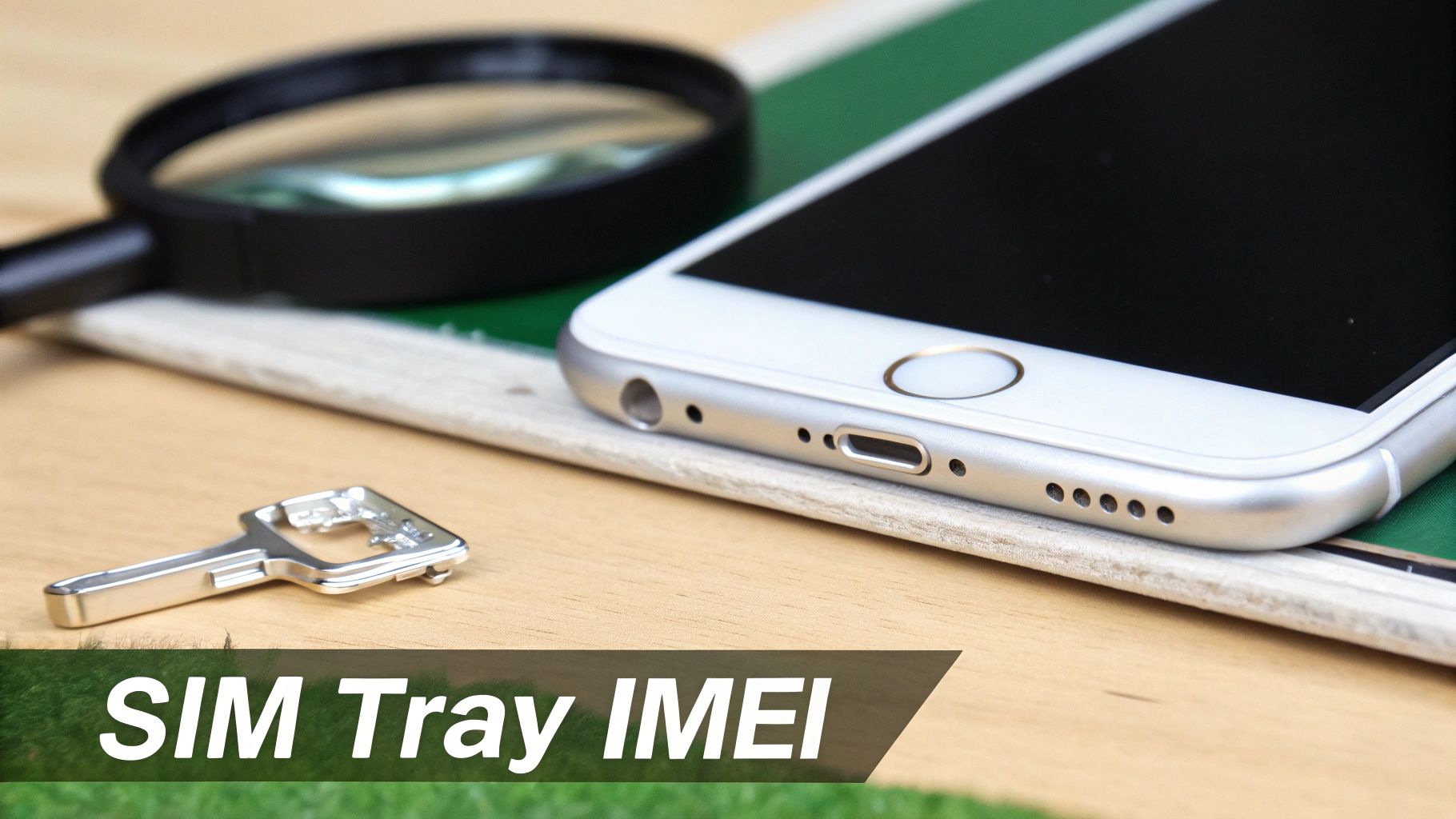
For most modern iPhones—we're talking everything from the iPhone 6s right through to the iPhone 13 series—Apple prints the IMEI directly onto the SIM card tray. It’s the most common physical spot to find the code these days.
Just grab a SIM ejector tool (a straightened paperclip works in a pinch) and gently pop the tray out. You'll probably need good lighting and maybe even a magnifying glass because the text is incredibly fine, but it’s there. This little trick is a lifesaver when the screen is out of commission.
Check the Back of the Phone Itself
If you’re working with an older model, the IMEI is even easier to find. On the original iPhone, the iPhone 5, 5c, 5s, and the first-generation SE, Apple engraved the number right onto the back of the aluminium casing.
Just flip the phone over and look for the small text near the bottom. It’s a straightforward method that Apple phased out with the launch of the iPhone 6.
Holding onto your iPhone’s original box is one of the smartest habits you can have. That simple piece of cardboard is often the easiest way to find your IMEI when the phone itself is inaccessible.
The Original Box Is Your Best Friend
Another absolute lifesaver is the box your iPhone came in. Hopefully, you've stashed it away in a cupboard somewhere. Every Apple box features a barcode label on the back or bottom that lists all the device's key identifiers.
This sticker clearly shows the serial number and, most importantly, the IMEI. If you have the box, you’re in luck—just find that label, and your search is over.
Using Your Computer to Locate the IMEI
Even if your iPhone is nowhere in sight, your computer can be your secret weapon for finding its IMEI. This comes in handy more often than you’d think—especially if your phone has been lost, stolen, or you’ve simply left it at home.
For Mac users, the process is built right into Finder. Just connect your iPhone to your Mac, open a Finder window, and look for your iPhone in the sidebar under ‘Locations’. Once you select it, you’ll see the 'General' tab with your iPhone's name at the top.
The trick is to click the small text directly below your iPhone’s name. It usually shows your phone number first, but with each click, it will cycle through other key details, eventually revealing the serial number and then the IMEI.
Find It Without Your Phone
If you’re on a Windows PC, iTunes works in a very similar way. Connect your device, select it when it appears in iTunes, and head to the 'Summary' tab to find the same information.
But what if you can’t physically connect your phone? Don't worry, there's a much easier method that works on any computer, anywhere.
Simply head to the official Apple ID website at appleid.apple.com. You’ll need to log in with the same Apple ID you use on your iPhone.
This online method is often the fastest and most convenient, as it doesn't require your iPhone or any cables—just your login details.
Once you’re in, just scroll down to the 'Devices' section and click on your iPhone from the list. A small pop-up window will appear, neatly displaying all of its critical details, including the serial number and, of course, the IMEI.
This is also a great place to manage your device or, if it’s been lost or stolen, initiate a remote wipe. To learn more about that process, you can explore our detailed guide on the steps for an iPhone factory reset.
How IMEI Blocking Protects You When Buying Used Phones
That 15-digit IMEI number is your single best defence against getting ripped off when buying a second-hand iPhone. Think of it as the phone's unique fingerprint. When a device is reported lost or stolen, Australian carriers add its IMEI to a national blacklist, which instantly blocks it from connecting to any mobile network in the country.
This clever system makes stolen phones virtually useless to thieves. In fact, Australia was the very first nation to roll out a comprehensive IMEI blocking system across all our major networks way back in 2003. This move put us at the forefront of mobile security and consumer protection. You can get the full story on this global standard to understand its importance.
Before you even think about handing over cash for a used iPhone, your first question should always be, "Can I have the IMEI?" A legitimate seller will have absolutely no issue sharing it with you.
Honestly, if they hesitate or make excuses, just walk away. It's a non-negotiable step for a safe purchase.
Why You Must Always Check
Once you have the IMEI, running it through an online checker is the next crucial step. This quick search confirms whether the phone is on the blacklist, giving you total peace of mind that you're buying a legitimate, fully working device. It’s a practice that reputable marketplaces like Trade.com.au insist on, helping to build a more transparent and trustworthy community for both buyers and sellers.
The IMEI check is vital, but it's not the only thing you should look at. For a complete rundown, make sure you read our guide on what to check when buying a used iPhone in Australia.
Your IMEI Questions Answered
We get a lot of questions about finding and using an iPhone's IMEI, so we’ve put together some quick answers to the most common ones. Hopefully, this clears up any confusion and helps you feel more confident handling your device’s info.
Why Does My iPhone Have Two IMEI Numbers?
Good question. If you’re seeing two IMEI numbers, it’s because your iPhone has Dual SIM capability. This means it can connect to two different mobile networks at once, either using a physical SIM and an eSIM, or even two eSIMs on newer models.
Since each network connection needs its own unique identifier to work, your phone has one IMEI assigned to each of its mobile modems. It's perfectly normal and just means your phone is a bit more versatile.
Is It Possible to Change an IMEI Number?
The short answer is no. An IMEI is hardwired into your phone's logic board during manufacturing, making it a permanent hardware ID. It can't be legitimately changed.
In fact, it's illegal to alter an IMEI in Australia. This is because criminals sometimes tamper with IMEIs to hide the identity of stolen phones and resell them. It's a serious security feature, not just a random number.
When Is It Safe to Share My IMEI?
Think of your IMEI like your car's VIN or a product serial number—you shouldn't share it with just anyone. It's generally safe to provide it to trusted organisations who have a legitimate reason to ask for it.
Here are a few safe scenarios:
- Your mobile carrier when you need technical support or to unlock your device.
- An insurance provider when you're making a claim.
- A reputable trade-in service (like us!) to verify the phone's history and status.
Crucially, never post your IMEI publicly online. Scammers can sometimes use it for cloning or other fraudulent activities, so it’s best to keep it private.
Ready to put your old iPhone's IMEI to good use? At Trade.com.au, we make it easy to trade in your old device for cash or upgrade to a certified refurbished model. Explore our range of verified tech today at https://www.trade.com.au.